Introduction
One of the most common challenges for SCCM (MECM) administrators is managing disk space on Distribution Points (DPs). Over time, as you deploy applications, software updates, and OS images, the SCCMContentLib folder grows. Even after removing deployments or packages from the console, orphaned content can sometimes remain on the server, consuming storage.
In this post, I will walk you through how to use the Content Library Cleanup Tool (ContentLibraryCleanup.exe) to reclaim disk space by removing orphaned content safely and effectively.
What is the Content Library Cleanup Tool?
The Content Library Cleanup Tool is a command-line utility provided by Microsoft. Its primary purpose is to remove content that is no longer associated with any package or application in the SCCM environment (orphaned content) from a Distribution Point.
Key Features:
- Safety First: It allows you to run a “What-If” scan before deleting anything.
- Target Specifics: You can target a specific DP or a remote DP.
- Log Details: It provides detailed logs to review exactly what will be removed.
Prerequisites and Location:
Before you begin, ensure that you have administrative access to the Distribution Point you intend to clean.
You can find the tool on your Site Server in the installation directory:
cd.latest\SMSSETUP\TOOLS\ContentLibraryCleanup\ContentLibraryCleanup.exe
Note: It is recommended to run this tool directly from the CAS or Primary Site server, rather than copying it to the DP itself.
Step-by-Step Guide
1. Analyze Mode (The “What-If” Scenario)
Crucial Warning: Never run the delete command immediately. Always start by scanning to see what the tool intends to remove.
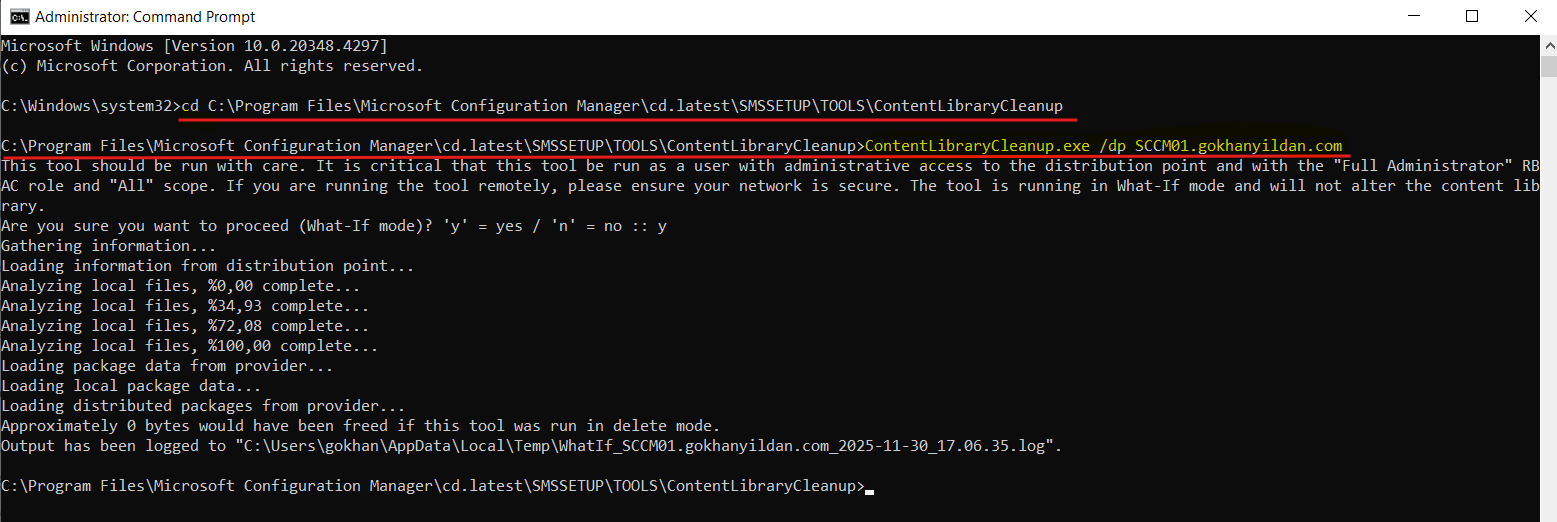
Open a Command Prompt as Administrator and navigate to the tool’s folder using the cd command. Run the following command:
ContentLibraryCleanup.exe /dp <DistributionPointFQDN>
- Replace
<DistributionPointFQDN>with the full name of your server (e.g.,sccm-dp01.domain.com).
What happens next? The tool will analyze the content library on the specified DP. This might take some time depending on the size of your library. Once finished, it will display:
- How much space can be freed.
- How many orphaned files were found.
- The location of the log file.
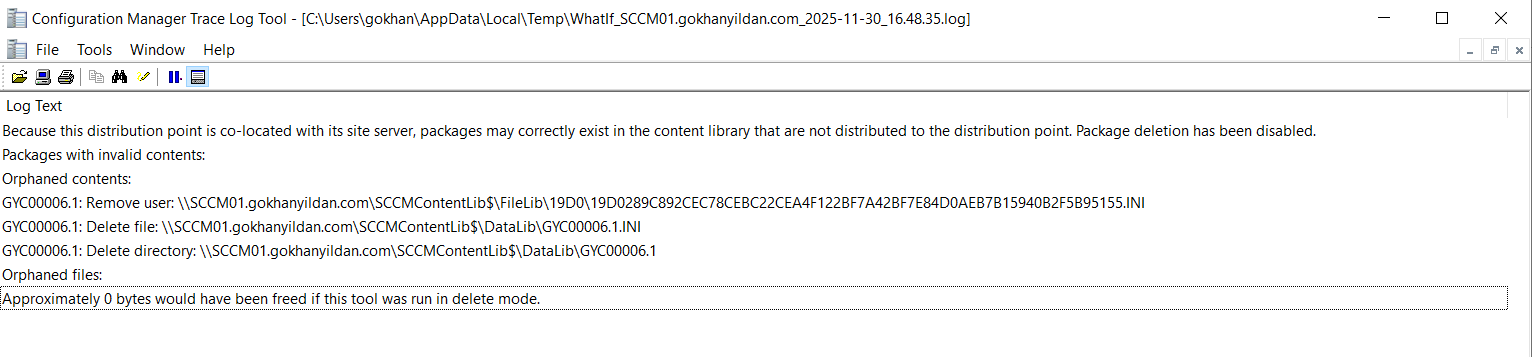
Review the Log: Open the log file generated. It will list the specific Content IDs that are marked for deletion. Cross-reference a few of these IDs in your console to ensure they are indeed not deployed.
2. Delete Mode (Reclaiming Space)
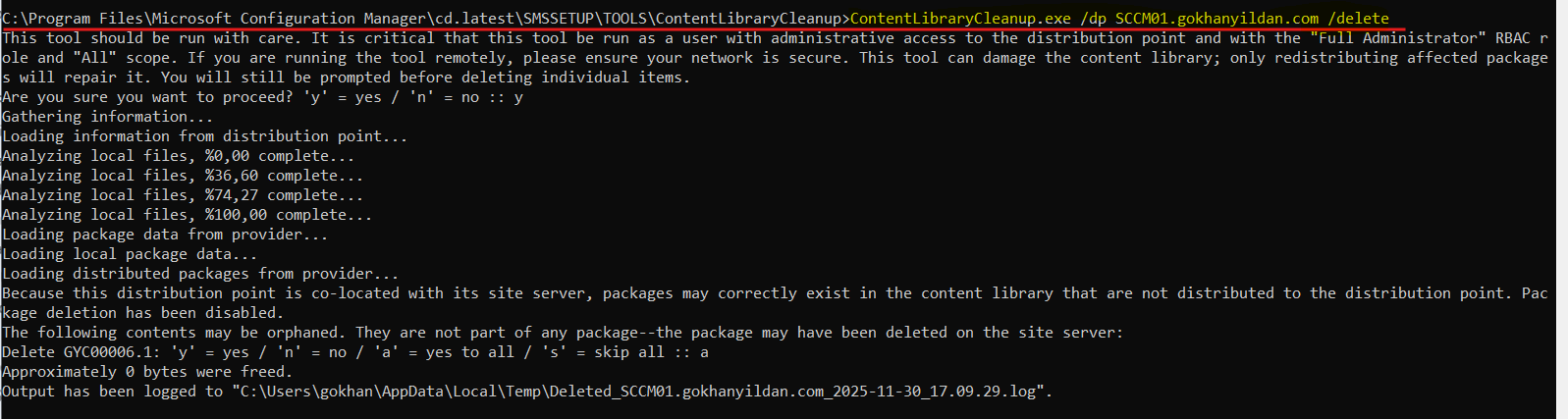
Once you are confident with the scan results, you can proceed to delete the orphaned content. Run the command with the delete switch:
PowerShell
ContentLibraryCleanup.exe /dp <DistributionPointFQDN> /deleteBefore the deletion starts, the tool will prompt you one last time to confirm. Type “y” to proceed or you can type “s” for yes to all.
Common Errors & Troubleshooting
- Access Denied: Ensure the account running the tool has Full Administrator rights in SCCM and Local Administrator rights on the target DP.
- WMI Issues: Since the tool relies on WMI to query the DP, ensure that WMI is healthy on the target server.
Conclusion
Regular maintenance of your Distribution Points is essential for a healthy SCCM environment. The Content Library Cleanup Tool is a powerful utility that should be part of every SCCM admin’s toolkit. I recommend running this tool periodically (e.g., once a quarter) or whenever you notice unexplained disk usage spikes on your DPs.
Thanks.